





The Center for Education and Human Resource Development (CEHRD) has issued a crucial directive requiring all schools—community, institutional, and traditional/religious—to update their records on the Integrated Educational Information Management System (IEMIS) by the end of Jestha, 2083.
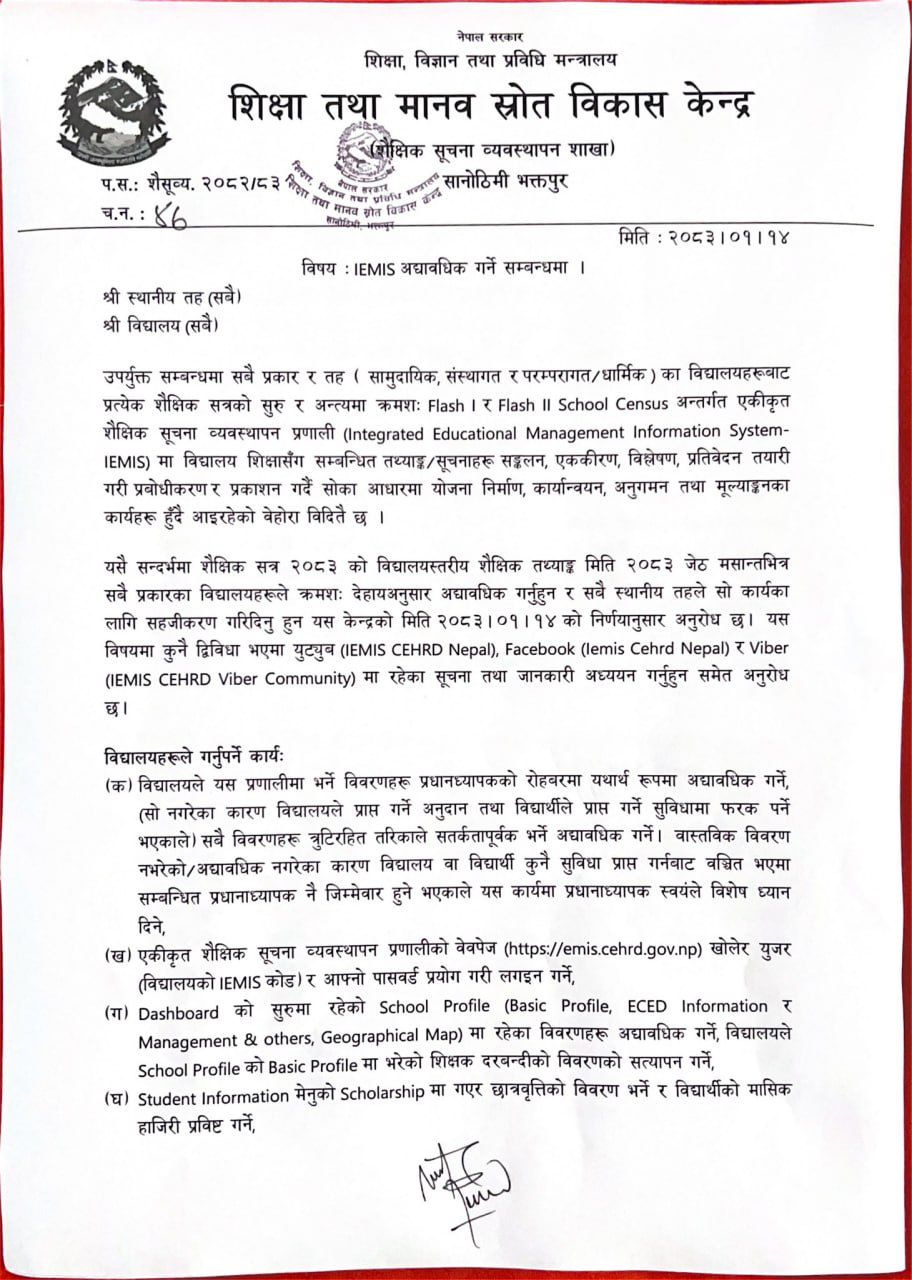
The notice, based on the center’s decision dated 2083/01/14, emphasizes that educational data collection, integration, analysis, and reporting through Flash I and Flash II School Census are essential for planning, implementation, monitoring, and evaluation in the education sector.
All local levels have been requested to facilitate this process, and schools are urged to complete the updates accurately under the supervision of their principals. Failure to do so may affect school grants and student benefits, with school principals held accountable for any discrepancies.
Schools must complete the following tasks:
a) Accurate Data Entry Under Principal’s Supervision
All information must be entered accurately and diligently. Principals must personally ensure that no errors or omissions occur, as they will be held responsible if the school or students are deprived of benefits due to inaccurate data.
b) Login to IEMIS
Access the IEMIS webpage at https://emis.cehrd.gov.np and log in using the school’s IEMIS code and password.
c) Update School Profile
Update all details under School Profile (Basic Profile, ECED Information, Management & Others, Geographical Map). Verify the teacher position details entered in the Basic Profile.
d) Scholarship and Attendance
Go to Student Information > Scholarship to enter scholarship details and record monthly student attendance.
e) Final Exam Results (Session 2082)
Go to Manage Exam to enter student achievement records for the final examination of academic session 2082.
f) Student Academic Status
Under Student Information > Update, update student status as: Passed, Passed & Transfer, Repeated, Repeated & Transfer, or Dropout based on academic performance.
g) Transfer Out
For students transferring to another school, go to Student Record > Student Transfer, select the destination school, and complete the transfer.
h) Accept Transferred Students
For incoming transfer students, go to Student Accept, view the list, and accept the students.
i) Enrollment in ECED/PPC and Grade 1
- For children enrolling in ECED/PPC, enter details via Add Student.
- Students enrolling in Grade 1 with prior ECED experience must be brought in through Student Transfer.
- Only students enrolling directly in Grade 1 without prior ECED experience should be added via Add Student.
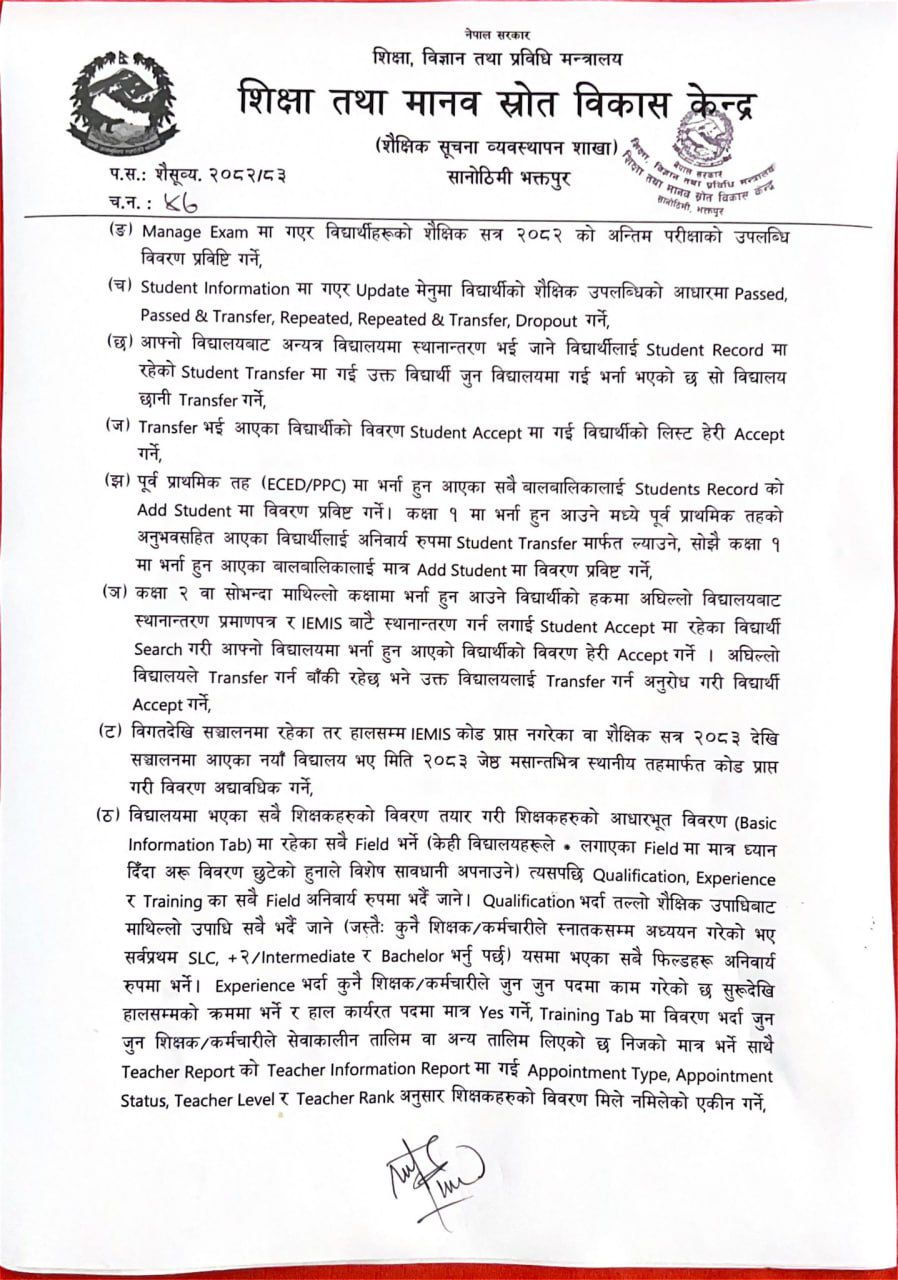
j) Enrollment in Grade 2 or Above
For students enrolling in Grade 2 or above, ensure they are transferred through IEMIS from the previous school using a transfer certificate. Search for the student under Student Accept and accept them. If the previous school has not yet transferred the student, request them to do so before accepting.
k) New Schools or Schools Without IEMIS Code
Schools that have been operating without an IEMIS code or are newly established from session 2083 must obtain a code through the local level by the end of Jestha 2083 and update their records.
l) Teacher Details (Complete Fields)
Prepare and enter complete details for all teachers. Fill in all fields under:
- Basic Information Tab (Do not skip any fields)
- Qualification Tab: Enter all qualifications from lowest to highest (e.g., SLC, +2/Intermediate, Bachelor).
- Experience Tab: Enter all positions held chronologically. Mark "Yes" only for the current position.
- Training Tab: Enter only in-service or other training completed by the teacher/employee.
Then, under Teacher Report > Teacher Information Report, verify teacher details by Appointment Type, Appointment Status, Teacher Level, and Teacher Rank.
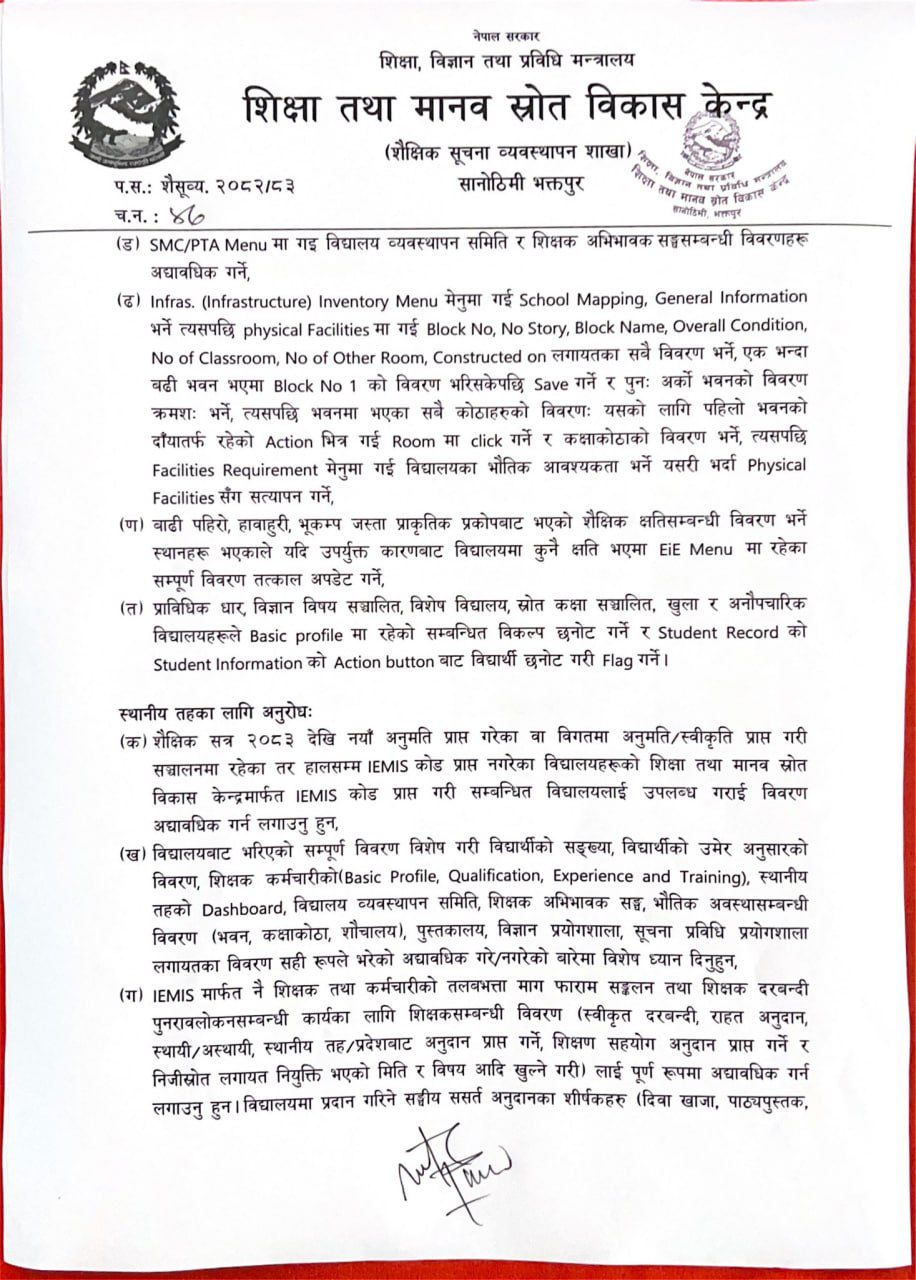
m) SMC/PTA Update
Go to the SMC/PTA Menu and update details related to the School Management Committee and the Parent-Teacher Association.
n) Infrastructure Inventory
Go to Infras. Inventory Menu.
- Enter School Mapping and General Information.
- Under Physical Facilities, enter Block No, No. of Stories, Block Name, Overall Condition, No. of Classrooms, No. of Other Rooms, Constructed on, etc.
- After saving details of Block No. 1, repeat for additional buildings.
- Under Action (right side of the first building), click Room to enter details of all rooms.
- Then go to Facilities Requirement and enter the school’s physical needs, ensuring consistency with Physical Facilities.
o) Educational Damage from Natural Disasters
If the school has suffered damage due to floods, landslides, storms, earthquakes, or other natural disasters, immediately update all details under the EiE Menu.
p) Technical Stream, Science, Special Schools, Resource Classes, Open/Non-formal Schools
Select the appropriate options in Basic Profile. Under Student Record > Student Information, use the Action button to select and flag students accordingly.
Instructions for Local Levels:
a) Provide IEMIS Codes
Ensure that newly approved schools (from session 2083) and existing schools without an IEMIS code obtain the code through the Education and Human Resource Development Center, then provide it to schools and ensure data updates.
b) Verify Accuracy of Data
Pay special attention to ensuring that all data entered by schools—especially student numbers, age-wise student details, teacher/employee details (Basic Profile, Qualification, Experience, Training), local level dashboard, SMC/PTA, physical facilities (buildings, classrooms, toilets), library, science lab, and IT lab—are correctly updated.
c) Salary, Teacher Position Review, and Conditional Grants
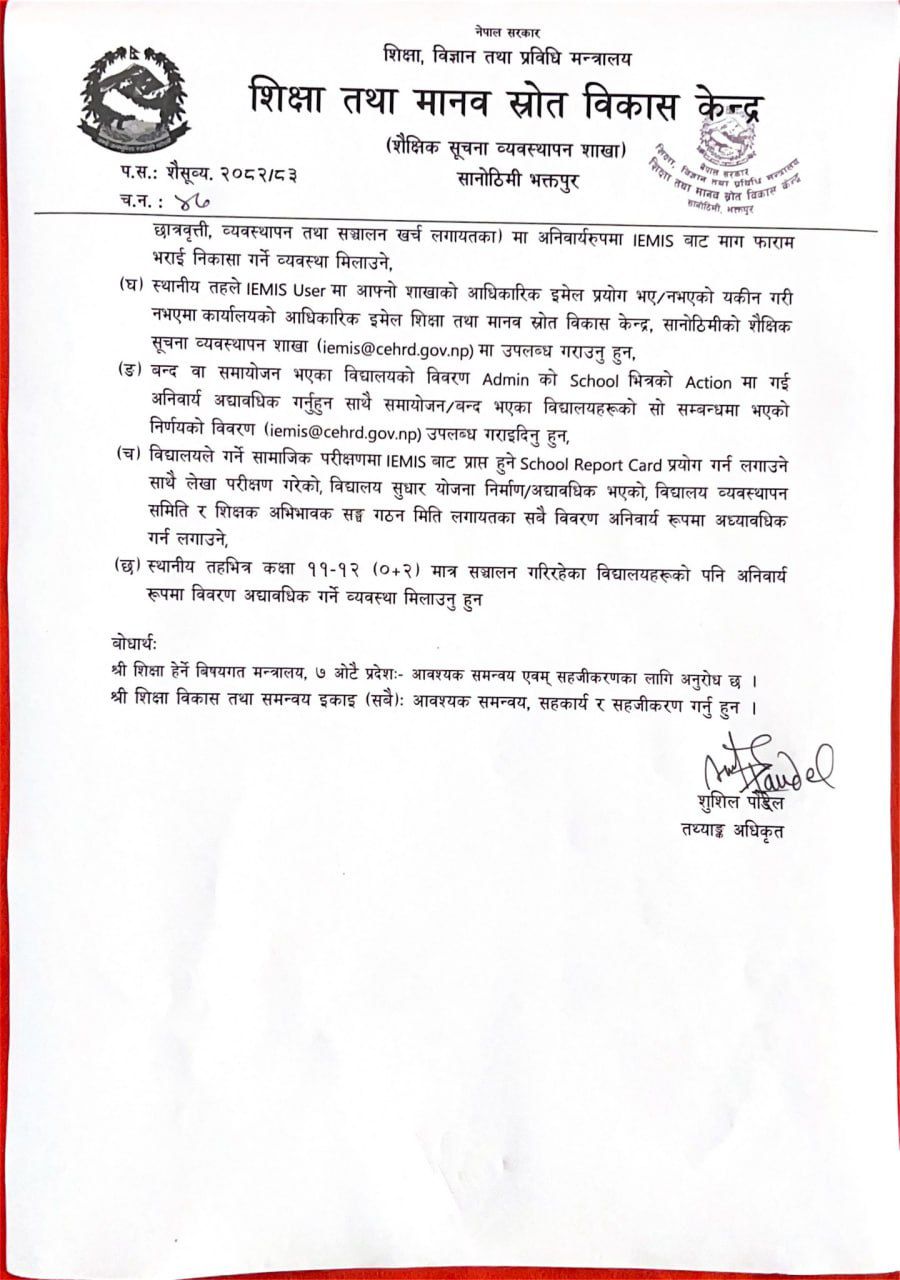
Ensure that teacher/employee details (approved positions, relief grants, permanent/temporary status, local/provincial grants, teaching support grants, private source appointments, appointment dates, subjects, etc.) are fully updated for collecting salary demands and reviewing teacher positions through IEMIS. Also, arrange that demand forms for federal conditional grants (mid-day meals, textbooks, scholarships, management and operating expenses, etc.) are submitted only through IEMIS before disbursement.
d) Official Email for IEMIS Users
Confirm that the local level’s IEMIS user uses the official branch email. If not, provide the office’s official email to the Educational Information Management Section, CEHRD, Sanothimi at: iemis@cehrd.gov.np
e) Closed or Adjusted Schools
Mandatorily update details of closed or adjusted schools via Admin > School > Action. Also, provide the decision details regarding closed/adjusted schools to iemis@cehrd.gov.np
f) Social Audit, School Report Card, and Plans
Ensure schools use the School Report Card from IEMIS during social audits. Also, mandate updating information related to audit completion, school improvement plan creation/updates, and SMC/PTA formation dates.
g) Grade 11-12 (+2) Schools
Ensure that schools operating only Grades 11-12 (+2) within the local level also mandatorily update their records.
Acknowledgment to:
- All 7 Provincial Ministries of Education: Requested for necessary coordination and facilitation.
- All Education Development and Coordination Units: Requested to provide necessary coordination, cooperation, and facilitation.
For any confusion or technical difficulties, schools and local levels are encouraged to refer to information available on:
- YouTube: IEMIS CEHRD Nepal
- Facebook: IEMIS Cehrd Nepal
- Viber: IEMIS CEHRD Viber Community
The content above is an unofficial translation of the official document. View the official notice below